Contents
Before you start
LOQMETRA is a Windows program that turns an ordinary Excel or CSV export from a warehouse or ERP system into 48 analyses — ABC and XYZ, turnover, OTIF, supplier lead times, productivity and more — and one XLSX report.
- Computer: Windows 10 or 11, 64-bit. No installation, no administrator rights, no account.
- Internet: only to download the program. Everything else works offline; your files never leave the computer.
- Data: one or more tables exported to Excel (.xlsx, .xlsm, .xls) or CSV (.csv, .txt, .tsv). One sheet holds one table, with column names in the first row (a few title rows above the header are fine — the program finds the header).
Typical tables: items (SKU master), stock on hand, orders and order lines, shipments, receipts, purchase orders, suppliers, warehouse operations, shifts, costs, returns. You do not need all of them: each method tells you which tables it uses, and the program runs whatever your data supports.
Download and first launch
- Click Download for Windows on loqmetra.com. You get a ZIP archive of about 75 MB.
- Open your Downloads folder, right-click the archive and choose Extract All…. Do not run the program from inside the ZIP — Windows would only show a preview.
- Open the extracted
LOQMETRAfolder and double-clickLOQMETRA.exe. - Windows may show “Windows protected your PC”. The beta is not yet code-signed, so SmartScreen does not know the publisher. Click More info, then Run anyway. This appears only the first time.
- A short tour starts (7 steps, about a minute). Read it or press Skip; you can replay it at any time with the Tour link at the bottom of the left menu or in Settings.
Keep the whole folder together: LOQMETRA.exe needs the files next to it. You can move the folder anywhere, for example to C:\LOQMETRA, and pin the program to the taskbar.
Updating: download the new ZIP, extract it and replace the old folder. Your settings and mapping memory are kept on the computer and survive the update.
Try it first with the sample warehouse
The archive contains Sample data\LOQMETRA-sample-warehouse.xlsx — a fictional warehouse with two years of history: items, suppliers, orders, shipments, receipts, stock, counts, operations, shifts, costs and more (23 sheets). All 48 methods apply to it, so it is the best way to see every screen before you load your own data.
- Drag the sample file onto the program window (or click Choose file and pick it).
- On Data check, click Confirm recognised.
- Click To analysis, then Run full analysis.
- Open any module, for example Inventory Management → ABC Analysis, and save the XLSX report.
Step 1 — load your file
On the Home screen, drag one or several files onto the drop area, or click Choose file. Several files are fine: for example a stock export and an orders export from different systems.
- The file is only read. It is never changed, never saved over and never sent anywhere. Excel macros are never opened or run.
- If the file is open in Excel and Windows refuses access, close it in Excel and load it again.
- Later you can use Add file to add data or Other file to start over with a different file.
After reading, the program opens Data check automatically.
Step 2 — Data check
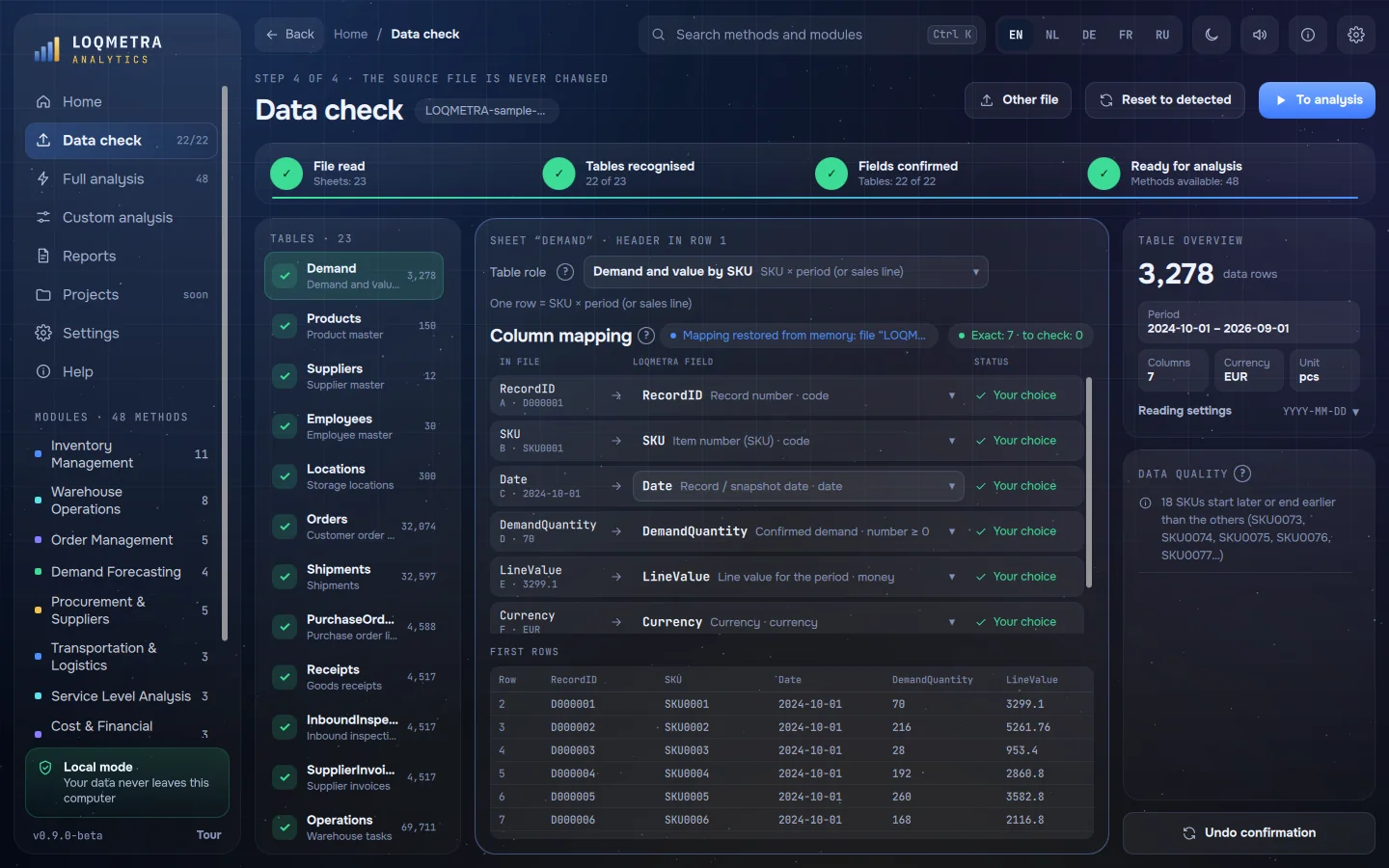
This is the most important screen. The program guesses what each table is and what each column means — and asks you wherever a guess could be wrong. Only tables you confirm take part in the analysis.
Tables (left). Each sheet of the file is listed with its number of rows and its state:
- Clarify — the program is unsure about the role or about a column and waits for your choice.
- Review — everything is recognised; only your confirmation is left.
- Confirmed — the table takes part in the analysis.
- Not used — a sheet without a role (an instruction sheet, say). It is ignored.
Table role (top of the middle). What the table is as a whole: stock, orders, shipments, receipts… The line One row = below it says what one row represents (for example “SKU × period”). If the role is wrong, pick the right one in the list; choose Do not use this table for sheets that are not data.
Column mapping (middle). Each column of your file is matched to a LOQMETRA field:
- Green — recognised exactly (for example “Artikelnummer” → SKU).
- Yellow — a generic word such as “Quantity”, “Date” or “Value”. Open the list and choose what it really means: sold quantity, stock on hand, quantity received… A wrong guess here would give a pretty but wrong result, so the program never decides this for you.
- Your choice — you set the field yourself. Columns the program does not need can stay Not used.
First rows below the mapping show the beginning of the table exactly as it was read — handy for checking dates and numbers.
Table overview (right). Number of rows, period, columns, currency and unit. If the file has no currency or unit column, type them in (for example EUR and pcs). They are labels for the report — nothing is converted. XYZ analysis needs the unit.
Reading settings (right). Header row, date format, decimal mark, and for CSV the delimiter and encoding. Change them if dates or numbers in First rows look wrong.
Data quality (right). Empty values, unreadable numbers, repeated keys, total rows, negative quantities, mixed currencies and similar problems, with row numbers. Where a fix makes sense there is a one-click action — for example Exclude total rows or Exclude rows with empty values. Nothing is removed without your click, every action can be undone, and every exclusion is written into the report.
Confirming. Confirm recognised confirms every table that has no open questions; tables with questions or errors are held back so you can look at them one by one and press Confirm table. Undo confirmation and Reset to detected take you back. When you are done, click To analysis.
The program remembers confirmed tables by their set of column names. Next week, the same export is recognised without questions. The memory can be cleared in Settings → Mapping memory.
If one table was exported in several parts with identical columns (for example one sheet per month), the program offers Combine into one table.
Step 3 — Full analysis
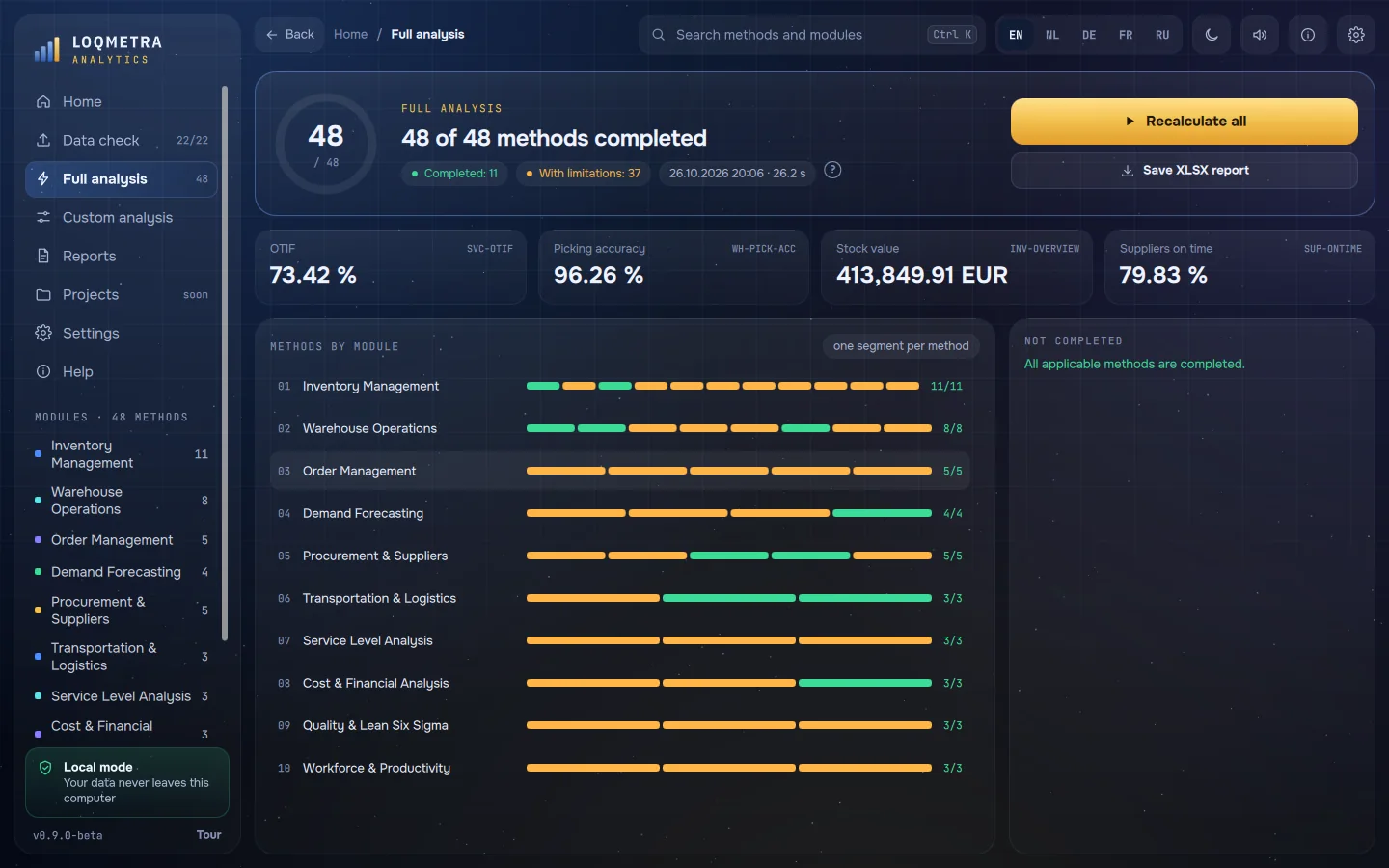
Click Run full analysis. The program checks which of the 48 methods your confirmed tables can support and runs exactly those. A large file takes from a few seconds to a minute; the calculation can be cancelled.
Every method gets a status:
- Completed (green) — calculated without reservations.
- Completed with limitations (yellow) — there is a result, and the reservations are stated, for example “only 8 months of history”.
- Unavailable (grey) — a required table or field is missing; the reason is shown, for example “planned and actual ship dates are needed”.
- Needs configuration — map the named field on Data check.
The Not completed list names, for every method that did not run, what is missing — with a button to go straight to Data check. Fix it, confirm, and press Recalculate all. If you change the confirmed data later, old results are cleared so that you never look at outdated numbers.
Custom analysis does the same for methods you pick yourself: All available, Clear all, then Calculate selected.
Step 4 — read the results
Open a module from the left menu or from the module tiles on Home. A module page has tabs by topic (for example Stock Classification, Inventory Turnover), a card per method with its status and key figures, and the selected method on the right with three views:
- Result — key figures, a chart (hover over it to see exact values) and the full table.
- Parameters — thresholds of the method, for example the ABC class limits (80 % / 15 % / 5 % by default). Changing a parameter clears the results that depend on it; press Recalculate.
- Methodology — purpose, required data, formula, assumptions, limitations and minimum data. Every number can be traced back to how it was calculated.
The search box at the top (Ctrl+K) finds any module or method by name in any of the five languages or by its code, for example INV-ABC. Back (or Alt+←, or the back button of the mouse) returns to the previous screen.
Step 5 — the XLSX report
Click Save XLSX report after the analysis (on Full analysis or Reports) and choose where to save it. The source file is not touched.
The workbook contains an overview and a summary, key figures, the status of every method, limitations, data quality, the field mapping you confirmed, data sources, methodology and run parameters — and one sheet per completed method with its full table. Filters, number formats, currency and period are set.
The report is written in the current interface language. To get it in another language, switch the language at the top (EN · NL · DE · FR · RU) and save again — no recalculation needed.
Settings
- Language — EN · NL · DE · FR · RU, for the interface and the report. The buttons at the top switch it instantly.
- Appearance — dark, light or as in Windows.
- Interface sounds and the “?” hints next to controls can be switched off.
- Guided tour — Show the tour replays the introduction.
- Mapping memory — how many column sets are remembered, and Clear memory.
- About — version, licences and the disclaimer.
Troubleshooting
- A method is “Unavailable”. Read the reason next to it: usually a table was not confirmed or a column was not mapped. Check the yellow columns on Data check.
- A column was recognised as the wrong field. Open the list in that row and pick the right field, or Not used. Confirm the table again.
- Dates are wrong (day and month swapped, or numbers like 45231). Change Date format in Reading settings.
- Numbers are wrong (1,5 read as 15). Change Decimal mark in Reading settings.
- A CSV ends up in one column or shows strange characters. Change Delimiter or Encoding in Reading settings.
- “This is a LOQMETRA report, not source data.” You loaded a report made by the program. Load the original export instead.
- The file is open in another program / access denied. Close it in Excel and load it again.
- The workbook is saved as “Strict Open XML”. Open it in Excel and save it as a regular .xlsx workbook.
- Results look odd. Check the unit and currency labels, the rows excluded on Data quality and the method Parameters. All of them are listed in the report.
Still stuck? Write to support@loqmetra.com with a screenshot and a description. Please do not send your company data — a screenshot of the screen is enough.
Glossary
- SKU — stock keeping unit, the item code.
- ABC analysis — splits items by their share of value or revenue: A — the vital few, C — the trivial many.
- XYZ analysis — splits items by stability of demand: X — steady, Z — erratic. The measure is the coefficient of variation (CV = standard deviation / mean).
- Inventory turnover — how many times stock “turns” in a period; days of inventory — how many days it will last.
- Reorder point (ROP) — the stock level at which to reorder: demand over the lead time plus safety stock.
- Lead time — time from the purchase order to the goods arriving.
- Fill rate — the share of the ordered quantity that was shipped.
- OTIF (on time, in full) — the share of orders shipped on time and complete.
- Dock-to-stock time — time from the truck at the dock to the goods being put away and available.
Questions or a mistake in this guide? Write to support@loqmetra.com.